


Working with a Virtual Private Server involves tasks such as deploying applications, editing configuration files, and monitoring system processes directly on the server. To do this, you need a reliable way to access the server from your local environment. This is where learning how to connect to a VPS via SSH becomes essential. It gives you direct command-line control, allowing you to manage your server without relying on web interfaces or control panels. This guide covers the key steps involved, along with what you need to establish a working connection and maintain stable access.
Key takeaway:
Learning to connect to a VPS via SSH provides direct, secure access to the server for managing files, installing software, and configuring services. Preparing credentials, using the correct authentication method, and following best practices such as using SSH keys and proper server configuration ensure reliable and secure remote server management. These steps are essential for efficient VPS administration.
Understanding SSH and VPS Access
SSH (Secure Shell) is a protocol used to establish an encrypted connection between your local machine and a remote server. Instead of exposing raw commands over the network, it creates a protected session where every input and response is transmitted securely. Once connected, you are given shell access, allowing you to execute commands on the server as if you were working on it directly.
Unlike shared hosting, a Virtual Private Server operates as an isolated environment with its own operating system, resources, and system-level access. Because of this setup, most management tasks, such as installing packages, editing configuration files, and controlling services, are performed through the command line rather than a graphical interface.
SSH serves as the primary access method for this environment. It allows authenticated users to interact with the system in real time, enabling them to maintain, configure, and troubleshoot the server without physical access.
Requirements Before Connecting to VPS via SSH
Before starting an SSH session, make sure you have the following:
- Server IP address: The public IP assigned to your VPS. This is provided in your hosting account dashboard and is required to locate the server.
- Username: The account you will use to log in. This is often root for full access, but many providers assign a different default user for security reasons.
- Authentication method
- Password: Set during server creation or provided by your host
- SSH key: A key pair used for authentication, commonly required or recommended for better security
- SSH port: The default is 22, but some servers use a custom port to reduce unauthorized access attempts.
- SSH client: A tool to initiate the connection. Most systems already include one, but you can also use terminal-based or graphical clients depending on your preference.
Having these details ready ensures you can connect without interruptions or failed login attempts.
Connecting VPS Via SSH
Connecting to your VPS via SSH follows a simple, consistent process across Linux, macOS, and Windows. Each step is outlined below.
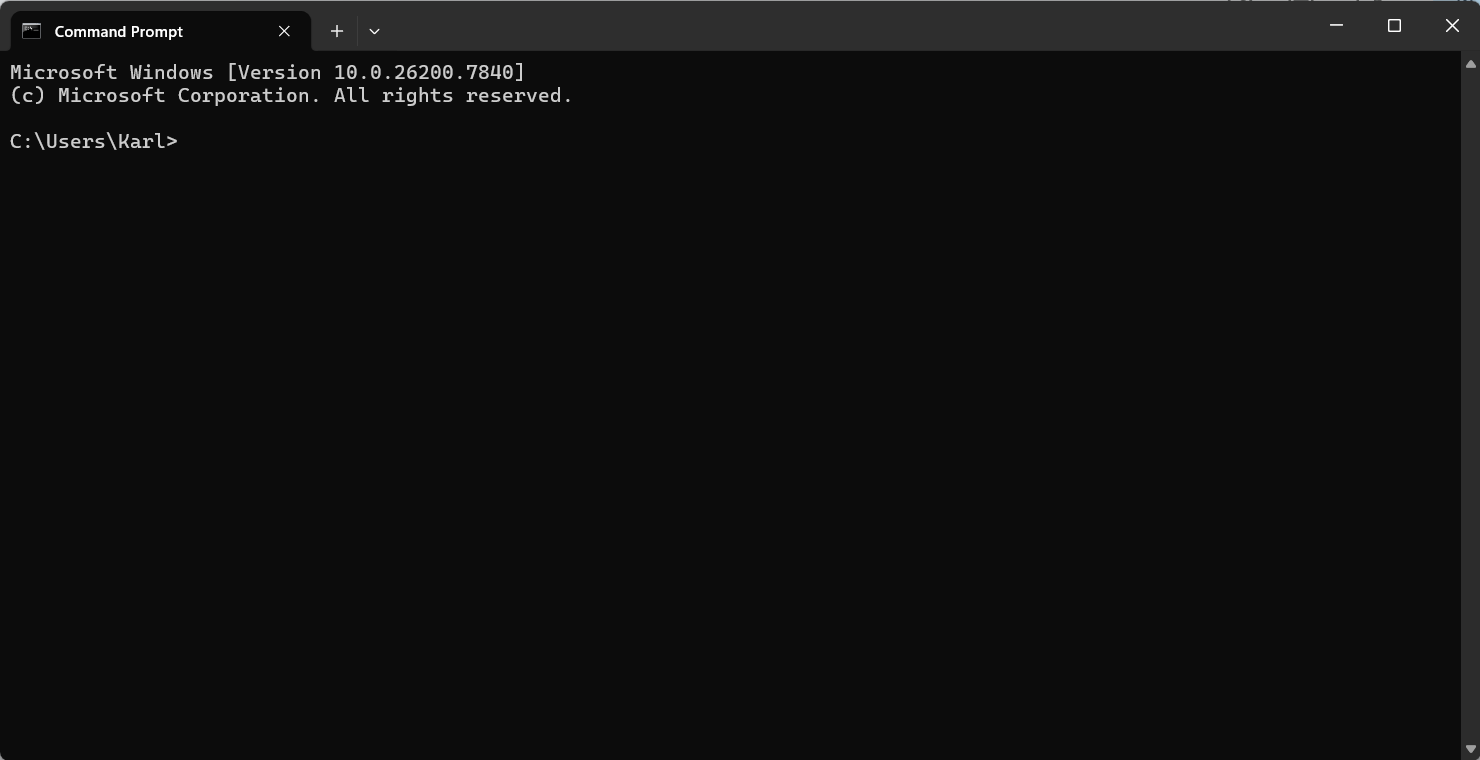
Step 1: Open a terminal or command-line tool
- Linux/macOS: Use the built-in Terminal application.
- Windows: Use PowerShell or Command Prompt. Alternatively, graphical clients like PuTTY can be used, but the connection steps remain the same.
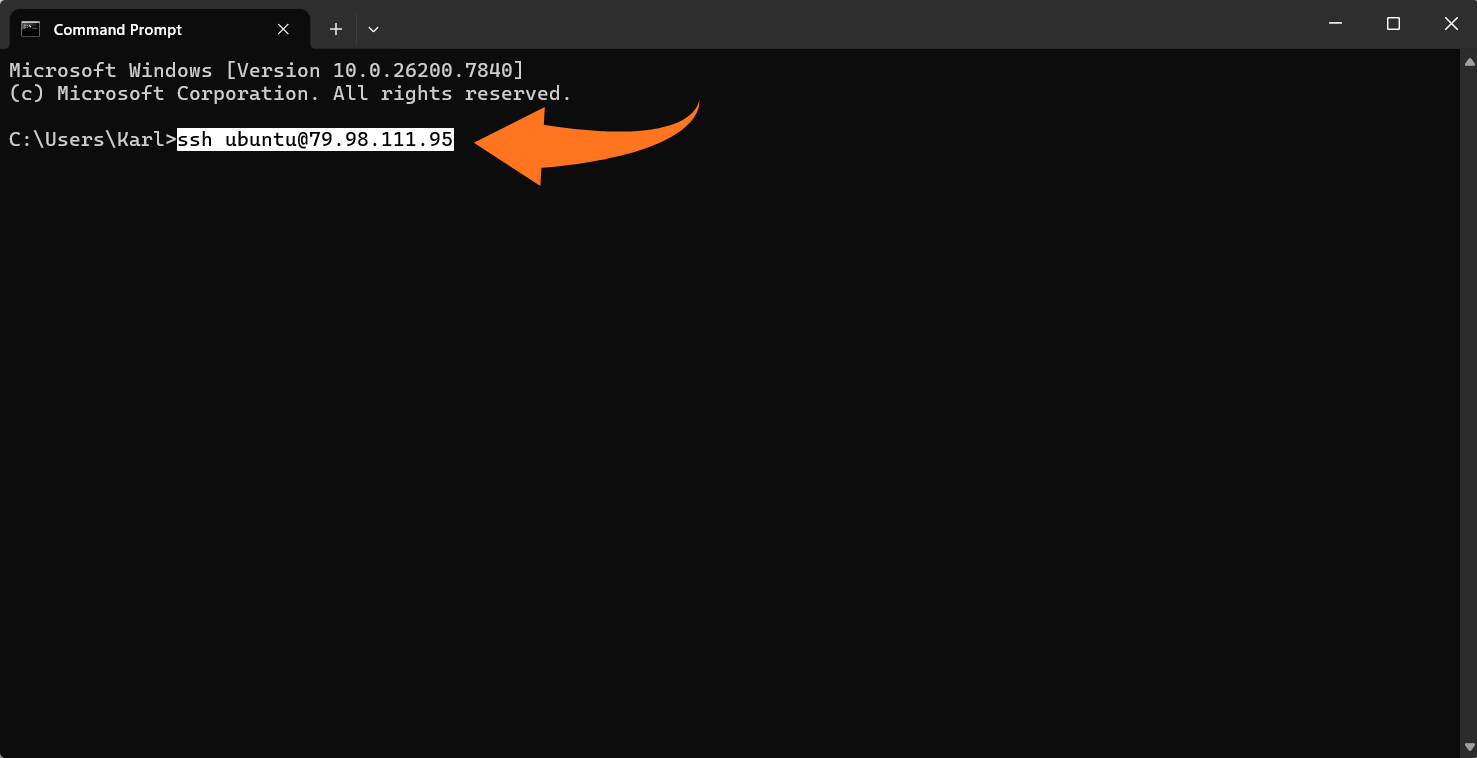
Step 2: Run the SSH command
Enter the following command, replacing username and your_server_ip with your actual credentials:
ssh username@your_server_ip
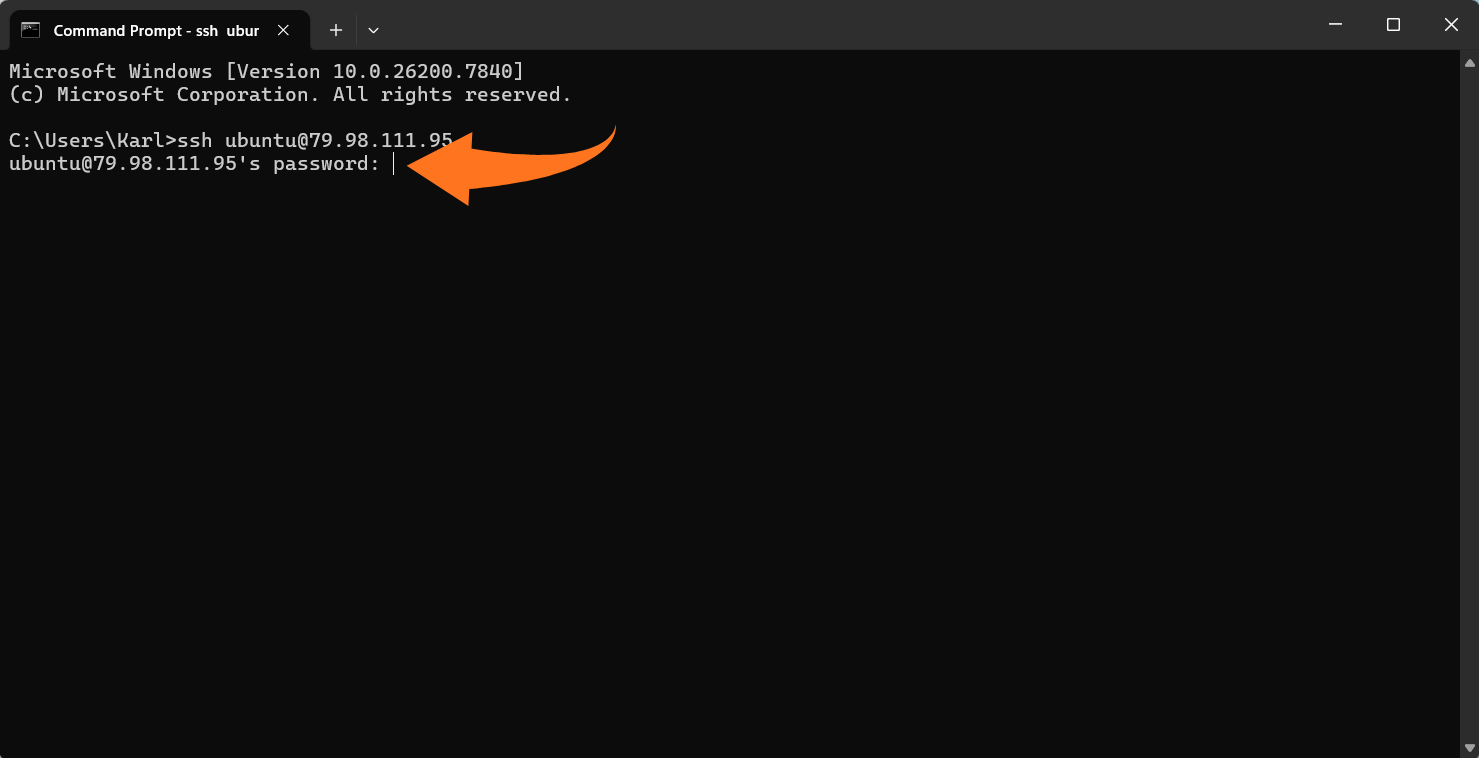
Step 3: Authenticate your session
- Password authentication: You will be prompted to enter your password.
- SSH key authentication: If you have an SSH key set up, the system will attempt to authenticate automatically.
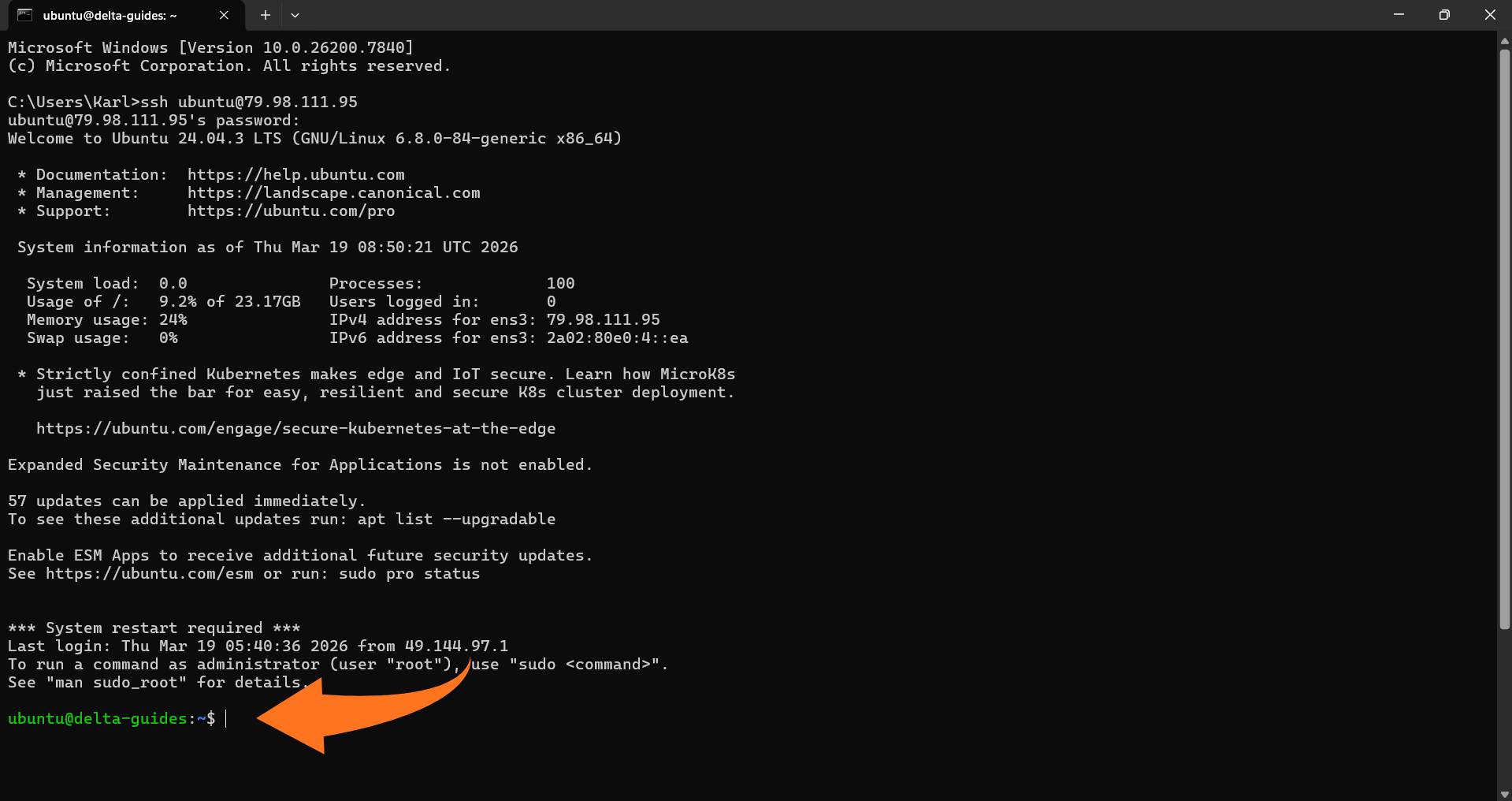
Step 4: Access and manage your server
Once connected, you will have command-line access to your VPS. You can execute commands, manage files, install software, and configure server settings directly on the server.
Common Issues When Connecting to a VPS via SSH
Incorrect Login Credentials
Make sure the username and server IP address match exactly what your hosting provider gives you. If using a password, remember that nothing will appear on the screen as you type. For SSH key authentication, ensure the correct private key file is being used.
Connection Timeout
Timeouts often occur when the SSH port is blocked or incorrectly configured. The default port is 22, but some servers use a custom port. Check your firewall and network settings to confirm the port is open, and use a simple ping or port test to verify the server is reachable.
Permission Errors with SSH Keys
Private key files must have proper permissions, usually set to 600, and be owned by the user initiating the connection. If the key is encrypted, make sure the correct passphrase is entered. Improper permissions or ownership will prevent successful authentication.
Best Practices for Secure SSH Access
To maintain a secure SSH connection when managing your VPS, follow these best practices:
- Disable root login: Use a non-root user for SSH access. This reduces the risk of automated attacks targeting the root account.
- Change the default SSH port: Moving away from the default port 22 helps reduce exposure to common scanning and brute-force attempts.
- Enable a firewall and restrict access: Limit SSH connections to trusted IP addresses to prevent unauthorized access.
- Keep server software updated: Regular updates protect against known vulnerabilities and security exploits.
- Use SSH keys instead of passwords: Key-based authentication is stronger and more reliable than password logins, especially when combined with a passphrase.
Implementing these practices strengthens server security and ensures a safer, more stable environment for managing your VPS.
Conclusion
Learning how to connect to a VPS via SSH is essential for anyone managing a remote server. It provides a secure, efficient, and flexible way to control your server from anywhere. By understanding SSH basics, preparing the necessary credentials, and following the proper connection steps, users can establish reliable remote access with ease.
For those looking to get started quickly or explore a robust VPS solution, check out our Cloud VPS plans. With the right setup and best practices in place, managing a VPS becomes both secure and efficient, letting you focus on development, deployment, and server optimization. If you need system administration, we're always here to help. Contact us at sales@delta.bg.